Schedule & Calendar Export Guide
The Schedule page gives a full calendar view of all championship games, with filters by club and team category. From there you can export any selection of games as an .ics file and import it into Google Calendar, Outlook, or Apple Calendar.
Overview
The Schedule page is accessible from the main menu. It displays all official championship games for the active season in an interactive calendar. No login is required to view the schedule.
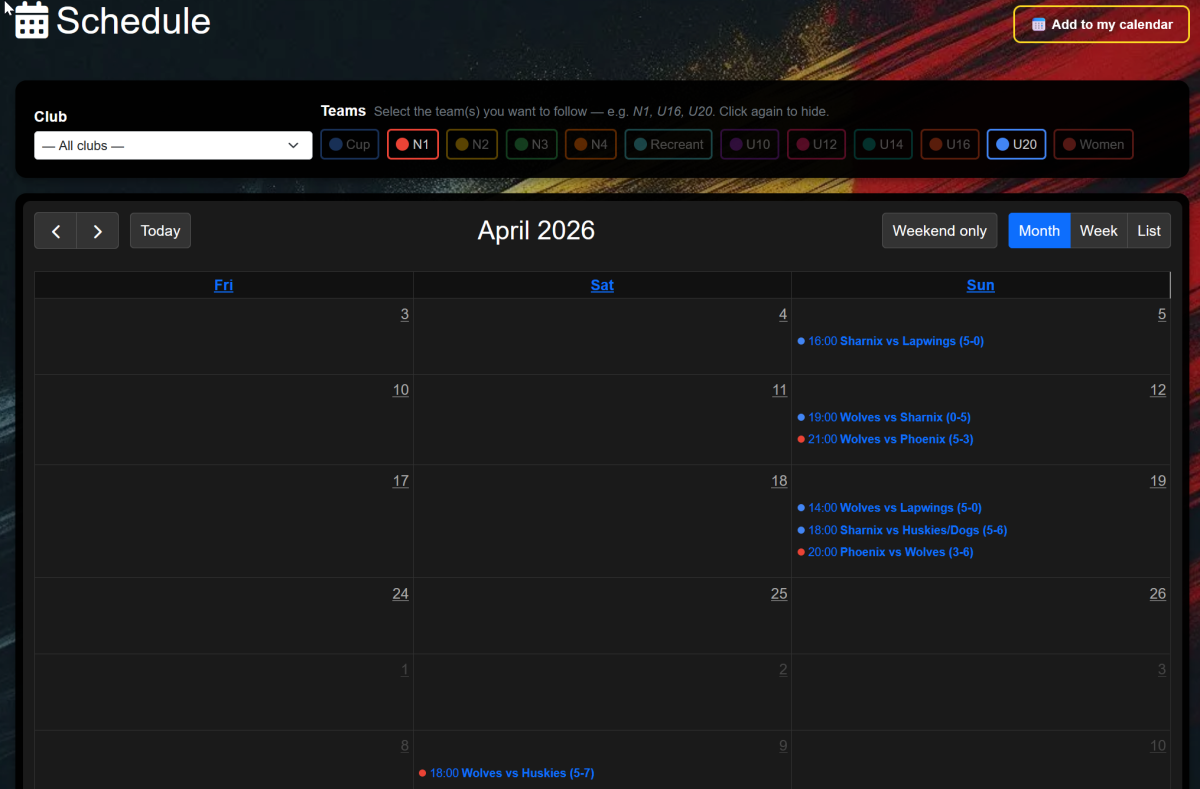
Schedule — Filters
The filter bar at the top of the Schedule page lets you narrow down the games displayed in the calendar.
Club filter
The Club dropdown filters games to show only matches involving a team from that club (home or away).
Select — All clubs — to remove the club filter and view all games across the league.
Team category toggles
Above the calendar, a row of coloured buttons lets you show or hide each team category (N1, N2, U16, U20, etc.).
| Action | Result |
|---|---|
| Click an active button (solid colour) | Hides that category — its games disappear from the calendar |
| Click an inactive button (faded) | Shows that category — its games reappear |
| Try to deactivate the last active button | No effect — at least one category must always be visible |
By default, only championship categories (those starting with N or U followed by a digit) are active. All others are hidden until you click them.

Calendar Views
The calendar toolbar (top right) lets you switch between three display modes.
Weekend only / Full week toggle
The Weekend only button in the toolbar hides Monday–Thursday from the Month and Week views. Most games are played on weekends, so this is the default. Click it again — it switches to Full week — to show all seven days.
Navigation
Use the ← prev and next → arrows to move between months or weeks. The today button jumps back to the current date.
Events & Tooltips
Each game appears as a coloured block in the calendar. Hover over a block to see a tooltip with additional details.
| Tooltip line | Content |
|---|---|
| First line | Category name (e.g. N1, U16) |
| 📍 Rink | Venue name, when available |
| ● Status | Planned / Live / Played / Terminated |
| Score | Home score – Visitor score, for finished games |
Clicking an event
Clicking a game block navigates to the Game Detail page for that match, where you can see the full score, rosters, timeline, and statistics.
Add to my calendar
The 📅 Add to my calendar button (top right of the page) opens the Calendar Export page with your current filters already applied — same club, same active categories.
Calendar Export — Accessing the page
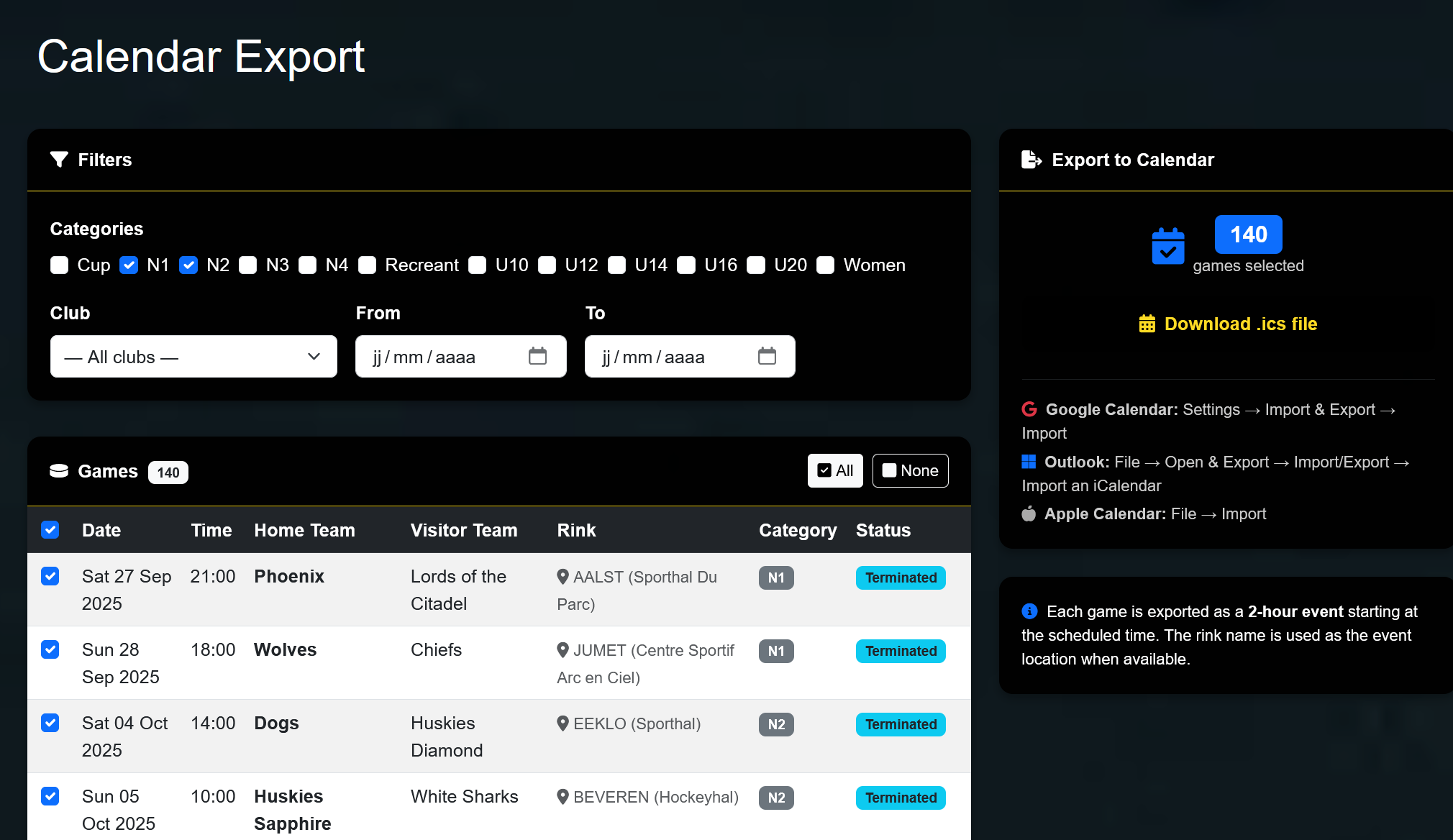
The Calendar Export page (calendar_export.php) lets you download a selection of games as an .ics file — the standard format accepted by Google Calendar, Outlook, and Apple Calendar.
There are two ways to reach it:
- A From the Schedule page — click 📅 Add to my calendar. Your current club and category filters are passed automatically.
-
B
Navigate directly to
calendar_export.phpfrom the main menu to start with no pre-set filters.
Calendar Export — Filters & Game List
Filters
The left column contains four filters that control which games appear in the list.
| Filter | Effect |
|---|---|
| Categories | Checkboxes — tick one or more categories to include. At least one must be selected. |
| Club | Dropdown — limits the list to games where at least one team belongs to that club. |
| From / To | Date range — restricts games to a specific period (e.g. next month only). |
Game list
The matching games are displayed in a table, sorted by date then time. Each row shows: date, time, home team, visitor team, rink, category, and status.
Each row has a checkbox on the left. Use it to include or exclude individual games from the export.
| Control | Action |
|---|---|
| Master checkbox (header row) | Selects or deselects all games at once |
| All button | Selects all games |
| None button | Deselects all games |
| Individual row checkbox | Toggles that game in or out of the export |
The counter badge on the right panel updates in real time and shows how many games are currently selected.
Calendar Export — Download & Import
Downloading the file
Once your selection is ready, click ⬇ Download .ics file in the right panel. A file named hockey_schedule_YYYYMMDD.ics is downloaded to your device.
- Each game = one calendar event
- Duration: 2 hours from the scheduled kick-off time
- Title: [Category] Home Team vs Visitor Team
- Location: rink name + address (when available in the database)
- Timezone: Europe/Brussels
Importing into your calendar app
- Open Google Calendar on the web
- Settings (gear icon) → Import & Export
- Click Select file, choose the
.icsfile - Select the target calendar, then click Import
- Open Outlook (desktop)
- File → Open & Export → Import/Export
- Choose Import an iCalendar (.ics)
- Select the file and confirm
- Open Calendar on Mac or iPhone
- File → Import
- Select the
.icsfile - Choose the target calendar and confirm
.ics file is a static export at the time of download. If game times or venues change afterwards, you will need to download and re-import a fresh file to stay up to date.FAQ
.ics file is only populated when the game has an assigned rink in the database with a complete address. Games without a rink or with an incomplete address will have no location in the exported event..ics file from the Calendar Export page (with the same filters) and import it again. The new file reflects the current schedule in the database.